Avrea CLI: The full Avrea experience in your terminal, for humans and agents alike
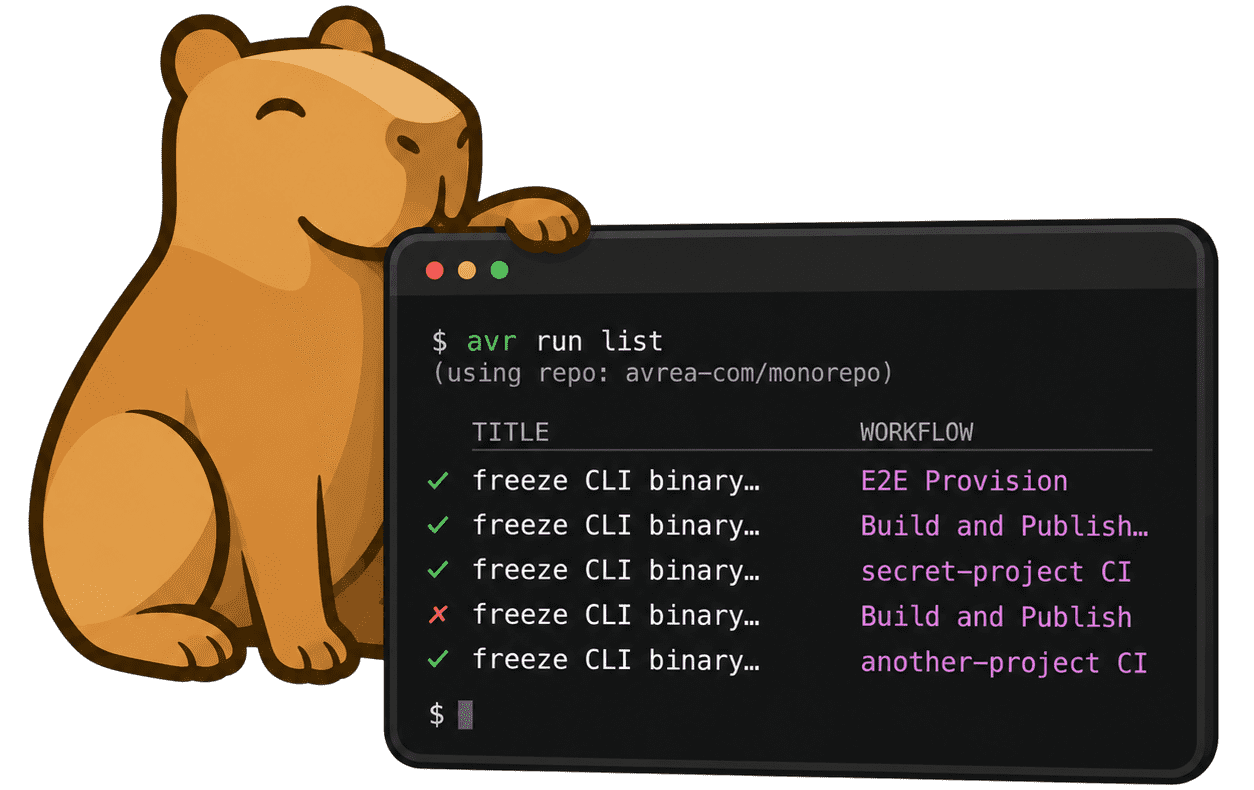

When a build fails, what happens next is almost always the same. You leave your editor (or agent), find the right browser tab, find the job, scroll the log, and try to find the error. It can take quite some time to get to even look at the actual error. To me, debugging sometimes feels like a chore but finding what to debug always is.
avr is Avrea's command-line client, and the promise behind it is simple: if you already live in the terminal, you shouldn't need the aforementioned browser dance. You should be able to access all of Avrea from the command line.
The second half of the promise is that the same properties that make a CLI pleasant for a person, are the same properties that let an agent drive it well.
Let's see how it looks:
avr run list
(using repo: avrea-com/monorepo)

   TITLE         WORKFLOW            BRANCH   ID          ELAPSED   AGE
 ✓ freeze CLI…   E2E Provision       tooling  run-1a107…  16m 09s   21m
 ✓ freeze CLI…   Build and Publish…  tooling  run-1a0cc…   4m 43s   21m
 ✓ freeze CLI…   secret-project CI   tooling  run-1a0a7…   1m 02s   21m
 ✗ freeze CLI…   Build and Publish   tooling  run-1a09c…   5m 10s   21m
 ✓ freeze CLI…   another-project CI  tooling  run-1a093…   1m 20s   21m
avr reads your git remote, maps it to the repository on Avrea, and scopes the query for you. The listing shows a pull request that has fanned out across a monorepo's workflows, and one of them, Build and Publish, has failed.
The rest of this post is split in two. First about how you, a human, can use the CLI. Second part is how the same tool works in the digital hands of an agent.
(As a side note, if you do want to get back to your browser, the CLI makes it very easy. avr wraps most ids and titles in OSC 8 hyperlinks, so in a modern terminal you can click any run-… ID to open it.)
Logs: triage in place
When a run is red, you usually don't care about the rest of the run, you just want the failed step. With avr you can:
avr run view run-019ed961a09c7971a4560d1406f24576 --log-failed
run view on its own shows the run and its jobs. Adding --log-failed prints the output of the steps that actually failed, grouped by job:
Title       tooling: freeze the CLI binary
Conclusion  ✗ failure
Workflow    Build and Publish (build-publish.yml)
Repository  avrea-com/monorepo

JOBS

  ✓  lint (44) (12s)                            job-019ed961a133…
  ✓  build-binaries (secret-project) (1m 24s)   job-019ed961a1ba…
  ✓  test (44) (29s)                            job-019ed961a21b…
  [9 more build and scan jobs, all green]
  ✗  build-cli-tool (36s)                       job-019ed961a27a…
  [3 downstream jobs skipped]

=== build-cli-tool ===

--- ✗ Smoke-test tool binary (failure) ---
  Run make -C "$BUILD_DIR" cli-tool-smoke
  python3 tooling/scripts/smoke_binary.py \
    tool-binaries/cli-linux-amd64
  FAIL: empty inventory -- the bundled plugins did not run
        in the frozen binary
  make: *** [Makefile:172: cli-tool-smoke] Error 1
That is the whole point of the tool in one screen. --log-failed helps you narrow a complex run to the parts that matters the most.
When you want everything, not just the failures, you have at least two options. avr run logs <run-id> dumps the full log for the run, paged through less so you can search it like any other file. And when the job is still going, you can tail it:
avr job logs <job-id> --follow
--follow streams the log live, grouped by step, with --level error and --step "Run tests" to filter down to the part you are interested in.
Everything run view shows you, it also prints out as structured data. The same command, pointed at a pipe:
avr run view \
  run-019ed961a09c7971a4560d1406f24576 \
  --json conclusion,jobs \
  -q '.jobs[]
      | select(.conclusion == "failure")
      | .job_name'
--json projects the fields you name and -q runs a jq expression over the result.
Metrics: live and aggregate
If a job is slow, or it got OOM-killed, you want to know what the machine was doing. On Avrea every job runs on its own VM, and avr shows you that VM's vitals, either live while the job runs or after the fact.
avr job metrics job-019ed961a1bf…
Job    job-019ed961a1bf…
Name   build-binaries (secret-project)
Status ✓ success (3m 51s, finished 17m ago)
VM     4 vCPU, 16 GB RAM
Runner avrea-ubuntu-latest-4-vcpu

cpu    ███░░░░░░░░░░░░▲░░░░ avg 5% (peak 78%, last 10%)
memory █▲░░░░░░░░░░░░░░░░░░ avg 776 MB/16.0 GB (peak 1.1GB,last 785 MB)
Each gauge is a sparkline across the job's lifetime: the average bar, a ▲ at the peak, and the last sample spelled out. The block above is the post-mortem of a finished Go build, a short spike to 78% CPU and it shows a short spike to 78% CPU and clearly it never got close to reaching the 16 GB memory ceiling this job and VM had.
While the job is still running, you can --watch it and the gauges update every five seconds:

CPU and memory are the defaults; --source adds filesystem, load, disk-io, disk-ops, and network.
You can also zoom out from a single job to a wider view and look at a workflow as a whole.
avr workflow view "E2E Provision"
E2E Provision
avrea-com/monorepo -- .github/workflows/e2e-provision.yml

  Runs          1254
  Median        16m 08s
  P95           39m 36s
  Failure rate  21.4%
  Flake rate    1.0%

JOBS

  NAME                         RUNS   MEDIAN      P95   FAILURE   FLAKE
  Provision + Smoke Tests       830  14m 19s  28m 29s     25.9%    0.0%
  Acquire e2e lease             135   9m 30s  50m 12s     12.8%    0.0%
  Rollback                      830   1m 03s   4m 51s      3.9%    0.0%
  Acquire e2e lock               81       9s      10s      0.0%    0.0%
  Release e2e lock               81       9s      11s      0.0%    0.0%
You can select the workflow by Avrea ID, the GitHub numeric ID, the filename, or the display name from the YAML. The window defaults to 30 days; --since 7d narrows it.
You can zoom out once more and avr status gives you the view of the whole org at a glance; recent runs, the slowest workflows, and cache usage.
avr status
Organization: avrea  (7d)

SLOWEST WORKFLOWS

    #  NAME                       REPOSITORY             MEDIAN    RUNS
    1  E2E Provision              avrea-com/monorepo    21m 18s     151
    2  Deploy to Staging          avrea-com/monorepo    13m 38s      40
    3  Build and Publish          avrea-com/monorepo     6m 58s     125

WORKFLOWS SLOWING DOWN

    #  NAME                            CURRENT   CHANGE
    1  secret-project CI                1m 21s   +113%
    2  installer CI                        52s    +76%
    3  tooling CI                       1m 18s    +28%

CACHE

  24.9 GB / 25.0 GB (100%)
  gha             22.8 GB  (230 entries)
  go-build         2.1 GB  (55126 entries)
SSH: get on the box
Logs tell you what happened but sometimes you need to get your hands dirty. The classic (CI) loop for "I cannot reproduce this locally" is to add print debugging, push, wait, read, repeat. On Avrea you can skip all of that, because you can get a shell on the VM running your job:
avr job ssh job-019ed9798f0f

That drops you onto the actual machine with the same environment, the same checkout, and the same live processes your job is running right now. So you can do the things a dashboard never can: attach to an interesting process with a debugger and read its live stack without stopping it, and list the files it has open and so on.
And because avr is a Unix tool, it composes. --print-command prints the SSH string instead of connecting, so you can pipe it into whatever you already use:
avr job ssh job-019ed9798f0f --print-command
ssh -o StrictHostKeyChecking=no -o UserKnownHostsFile=/dev/null -p 34905 runner@203.0.113.42
You can for example use `scp` to copy files, or point your editor's remote-SSH at it.
The same usability, for agents
avr tells you what it can do, in a form you can read without a manual. You can ask any list or view command for its schema. This is very useful for agents.
avr run list --json '?'
Specify one or more comma-separated fields for `--json`:
  conclusion
  created_at
  display_title
  duration_seconds
  event
  head_branch
  head_sha
  platform_run_id
  repository
  run_attempt
  run_id
  run_number
  status
  triggering_actor
  updated_at
  workflow
  workflow_id
Once you (or an agent!) know the fields, you just select the ones you want to output:
avr run list --status failure --json run_id,head_branch,conclusion.
[
  {
    "run_id": "run-019ed961a09c7971a4560d1406f24576",
    "head_branch": "tooling-smoke",
    "conclusion": "failure"
  },
  {
    "run_id": "run-019ed744f0e2732491a7a7d55fe74b00",
    "head_branch": "cli-rework",
    "conclusion": "failure"
  }
]
Even without --json, the CLI drops the color and box-drawing for clean tab-separated rows when need be so avr run list | awk '{print $1}' works with no flags at all. Pipe a watch command and it switches to newline-delimited JSON events, so avr run watch --ndjson | jq -c . is a live event stream you can react to:
{"event":"job_completed","run_id":"run-019ed989…", "job_name": "Acquire lease","state":"completed","conclusion":"success"}
{"event":"job_started","run_id":"run-019ed989…", "job_name": "Smoke Tests","state":"in_progress","conclusion":null}
A self-describing schema, field projection, built-in jq, pipe-aware output, and deterministic exit codes are exactly as useful to an agent driving the CLI as they are to the engineer who pipes it into awk.
Agentic debugging
One final example: ask Claude to debug your workflows with avr:
claude -p "my latest run on demo-triage failed. \
triage it, fix it, push the fix, and explain the \
issue and the fix." \
  --allowedTools 'Bash(avr:*)' 'Bash(git:*)' 'Edit'

Instead of a one-off prompt you can also make using avr into a skill. And by you I mean you can ask your agent to write the skill for you. Something like this:
---
name: ci-triage
description: >-
  Triage a failing run on Avrea with the `avr` CLI.
  Use when a run is red and you need the failing job,
  the failing step, the cause, and a next step.
---

# CI triage with `avr`

1. Find the failure. `avr run list --status failure --json run_id,display_title,head_branch`
   returns recent failed runs as JSON. Take the most recent `run_id`.

2. Read only what broke. `avr run view <run_id> --log-failed` prints just the
   failed steps, grouped by job. This is the primary signal.

3. Reason over jobs when you need structure:
   `avr run view <run_id> --json '*' -q '.jobs[] | select(.conclusion=="failure")'`.

4. For a recurring or flaky failure, check the workflow's history:
   `avr workflow view <workflow>` for per-job failure rate and p95.

5. If the cause is environmental, not in the logs, inspect the VM:
   `avr job metrics <job_id>`, or `avr job ssh <job_id> --print-command`.

6. Report the failing job, the failing step, the error, and a concrete next step.
   Exit code 4 from any command means auth is required: surface it, do not retry.
Prompt or skill, agents are very good at interacting with Avrea through avr and they can be very helpful in inspecting and debugging issues with your workflows.
Try it
avr is open source and on PyPI, Homebrew, and GitHub:
brew install avrea-com/tap/avr   # or: pip install avr-cli
avr auth login
avr status
Runs and jobs are where you will spend most of your time, but with avr you can also manage cache, workflows, firewall and more. The full Avrea experience usable by humans and agents alike.
Avrea is available today, and getting started takes only a few minutes.
Every new user can try Avrea for free with 3,000 build minutes included.